
If you are running a computer which was recently purchased then most of the hard disk drives are formatted with the NTFS File System and there is no option to revert back to the old FAT16 or FAT32 File system because Microsoft wants everyone to use the advanced NTFS[Nt File System] which is the reason downgrade option is not available. At times there are situations where in you would like to use both of these file systems on the same computer but since Windows wont allow you to get this thing done easily you need to tweak up with your computer in order to convert your NTFS file system into FAT format.
First you need to access the ‘Disk Management’ section of your computer where you can find all the drives and this is the place where you can create or delete your partitions and then format them. Right Click on your ‘My Computer’ icon on your desktop and click on ‘Manage’, which will open the ‘Computer Management’ application. Under the storage section in this you will find the ‘Disk Management’, click on it.
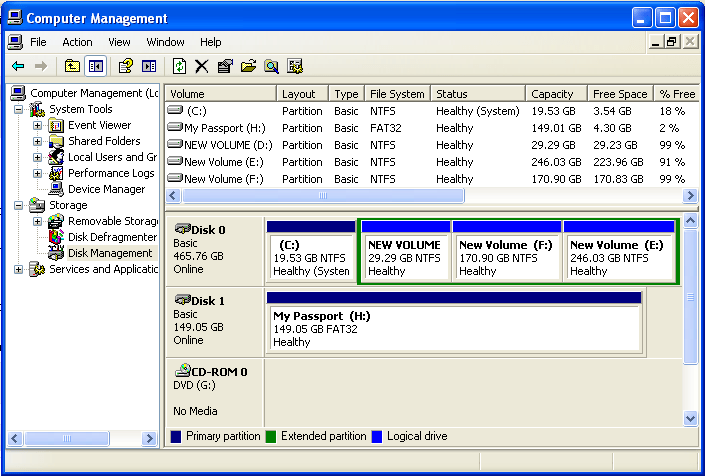
You will find all your disk drives, right click on the partition you want to format and select Delete Logical Drive because you need to first delete a drive in order to convert it. If you directly select the format option you will find a option to format it to NTFS only. Make sure the drive you are deleting is not more than 32Gb if not it wont be accepted since FAT does not support more than 32Gb of disk space. If you ignored this and tried to create a Logical drive with space more than 32Gb you will find that the FAT option wont be shown when you try to format it.

Once the deletion of the Logical Drive is completed you will find that there would be ‘Free Space’ displayed which has to be first created into a ‘New Logical Drive’ using the New Partition Wizard. Right click on this drive and click on ‘New Logical Drive’ and follow the options displayed there, you can assign the complete left space to this drive or else create multiple drives based on the size in MB you specify. A Logical Drive is a volume you create within a extended partition on a Master Boot Record[MBR] basic disk.
Next you need to specify the Drive Letter which you want to Assign to this new Drive following which you will be shown with options to format with NTFS or FAT32 file system and other options like Allocation Unit Size & Volume Label. You can click on Quick Format if you want the job to be done very quickly and click on Next where in the complete formatting would take a few seconds and you are done.


what is required by many users is the option of converting/formating ntfs to dos when the partition size is more than 32gb. utilities like bootitng, several partition masters can format an ntfs partition of any size into dos, both from within windows as well as from dos if you boot into dos with those utilities. please supplement your article with properly tested safe and free utility so that users are benefitted
how to open acess denied site