
Last time i had written a article in which we had made Windows XP Look like Windows 7 which really worked perfect and gave the ultimate looks of a Windows 7 based computer and this time iam going to give you a link to such a application which would transform your total computer which would be Windows XP based and would look like as if you are running a Apple Mac OS X based computer.

The installation package would install all the required files automatically and after this a new Leopard-X visual style along with 4 different variations would appear ie
1. – Leopard-X visual style (4 variations)
2. – Leopard-X styler
3. – Leopard-X Mac search skin
4. – Leopard-X Dock skin
5. – Wallpapers
How to install:
To use this visual style you’ll need to patch your windows first. You need to download and install
Uxtheme Multi-patcher!
To do that follow next links:
For Windows XP – SP2:
http://www.softpedia.com/get/System/OS-Enhancements/UXTheme-MultiPatcher.shtml
For Windows XP – SP3:
http://www.softpedia.com/get/System/OS-Enhancements/SP3-UxTheme-Patcher.shtml
Upon successful installation, just unpack and install Leopard-X visual style!
Open Display properties/Appearance, and switch on Leopard-X visual style.
Then click Apply and this is it!
Full Screenshot Below :

Tips and tricks:
To make that window looks same as it is here presented in this promo pictures you’ll need to do the next: Activate status bar in explorer (explorer menu: view/status bar) and check it “on”!
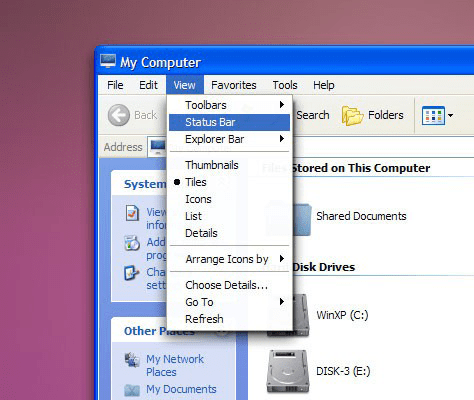
The bottom status bar will appears. Then open display properties, switch on Appearance and from Color
scheme choose: Aqua or Graphite variation!
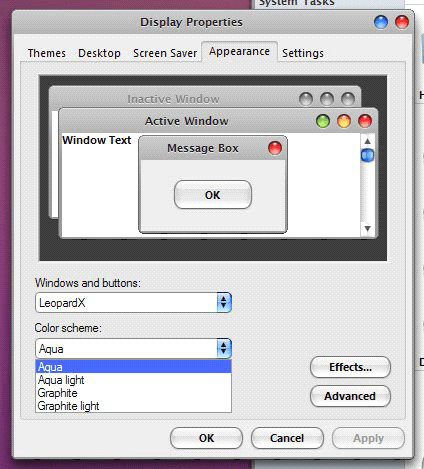
Aqua & Graphite light variations are built with the thinner frame which means that they don’t support rounded edges in the status bar. This is recommended variation if you do not use status bar! If you do, like here in this example, well then just use Aqua or Graphite color variation. Download and install Styler.
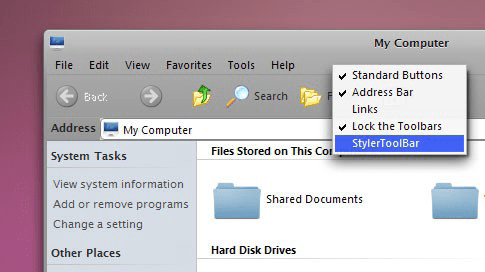
After installation you’ll need to activate Styler, and you can do that by calling the menu from the window.
Just click near the help menu with the right button and choose from menu StylerToolBar… The rest
should be unchecked (or hidden).
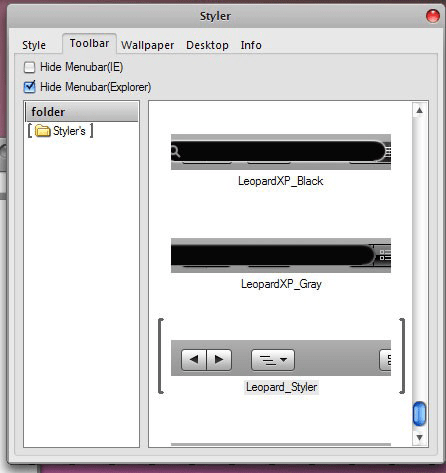
Then open Styler menu and from there hide menu in explorer! You can also enable windows shadow effect from there. Just check Desktop tab. This is what you should get at the end! Install XWindows Dock for full Leopard experience and even more.
It can do next things:
1. Real-time dock icons reflection
2. Real-time windows reflection
3. Applied dock icons shadow effect
4. Applied blur reflection effect
5. Icons positioning inside the dock
6. Stack video preview
7. Picture folder gallery preview
8. Advanced stack animations, and more…
And what is most important, user can manipulate and set all these elements separately

greatttttt jobbbbbbb amit.this really works mannnn.
how to get to the ‘styler Menu’??
forgive me but i dont understand. where is the link for this package?
how to downlaod it
when i am installing its saying “use at own risk it might damage your system”
is there any risk to install it?
are you using google chrome to install it? then no, there is no risk at downloading but make sure you have a good virus scanner. Microsoft made a free one called: “Microsoft Security Essentials” wich works great. if you didn’t use google chrome. then don’t download it because when it is on Internet Explorer, Mozilla Firefox, Opera or Safari then it is most of the time serious
how to use it can i contact with you.