
Question : Hello Amit, I have been reading all your awesome posts and the useful guides which you publish everyday. Recently while going through your article on Transfer Google Analytics Website Profile to Another Account, i got a doubt that is it possible to track Google Adsense revenue from a single blog post? Can we get individual stats for the same? Even after using adsense channels I get stats on a particular ad size but not for every page on my blog and its practically not possible to add a different channel for every article. Kindly help me on this.
Answer : There are many different options like the A/B Split Testing using which you can compare the stats of two different pages or else find detailed statistics. Also you can use services like Statcounter to find out the incoming traffic statistics but again this option is not accurate, hence the following option has to be implemented.
Google has been offering a very good facility of linking your Adsense account with your Analytics Account. This means that you can easily Integrate Google Analytics & Google Adsense and then enjoy the data which are given to you. Once the account is linked you will find a new option in the Analytics > Content as shown below.

Once you click on this option, you will be shown with a page which shows you detailed stats on your total Adsense Revenue for the default period of last 1 month, Revenue / 1000 Visits, Ads Clicked, Ads Clicked / Visit, CTR, eCPM, Unit Impressions, Unit Impressions / Visit, Page Impressions & Page Impressions / Visit. Along with this You also get a report on the ‘Top Adsense Content’ and ‘Top AdSense Referrers’. Click on this option to get a full report for the same as shown below.

Under the detailed listings page you will be shown with a list of 10 rows of posts and their detailed statistics for the selected time range. Use the Search box under the ‘Filter Page’ option to find out any specific blog posts revenue.

Once the specific link is shown for which you would like to check out the adsense statistics you need to click on the same. A new page would be shown which is based on sampled data and which gives you information based on different aspects.
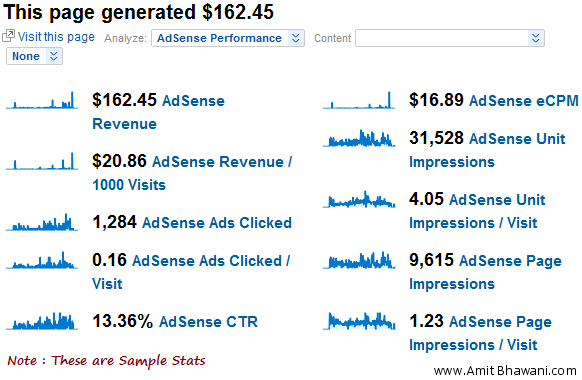
Using this procedure you can easily find out the best performing pages on your website or blog and the pages which have the highest CTR but with lower revenues. Hence based on this information you could also decide on replacing the advertisements on those low paying ad pages with Affiliate Programs or CPA Offers.

Nice one Amit..!!
This will very useful For Adsense Publishers..!!!
Hi Amit,
But only 1 analytics account can be linked to an adsense account. I host 5 websites which shows ads from one adsense account, but i can only link 1 website to my analytics account !!
This remains the flaw in google till date !!!
That is true, We have hundreds of sites in both adsense and analytics but only its linked to one set. Hope Google offers this integration within the Adsense Interface itself.
For me when i clicked Integrate Google Analytics & Google Adsense …I did not get any ADSENSE tab in analytics. Iam suffering from this problem .Please help me bro…what to do now…:-(
Hi Amit,
I have one profile in analytic. In which i have five sites, which includes hubpages and four other sites. I linked hubpages as primary/default and pasted code for other sites. In above pic, you have adsense in your analytic. I don’t have any? What should i do? Because we can easily track our money pages.
Thanks bro for sharing i was searching for that.
Hello Amit,
Can you please tell me how did you place those 728*60 TextLinkAds on your header, I mean how could you have 1 column ads there? Is it a customized one and did you increase the font size?
Thanks
Its a customized one.
great share amit,really helpful for adsense publishers
Was searching for this option from a long time. Thanks for the detailed post. 🙂
Adsense Publishers gonna really relish this article. Thanks for this detailed post!!