Amit Bhawani Blog

Stay Updated!

Powered by Genesis

You are here: Home / Microsoft Blog / MS Office Professional Plus 2010 Installation & Screenshots

MS Office Professional Plus 2010 Installation & Screenshots

November 22, 2009 by Amit Bhawani

Microsoft Office 2010
If you have already downloaded MS Office Professional Plus 2010 software directly from the Microsoft website the next step would be to install it and take advantage of all its features. In this article we are going to show you with some features and screenshots of the software which are have installed and how to get started using them.

The beginning would be with the Extraction of files from the large downloaded file. Next you will find that there is a option to Upgrade because i had MS Office already installed of a older version and hence i could customize this to keep all the previous versions or else upgrade it. The installation process would start, though i felt that it took a long time to install because the progress bar was quite slow in moving and at a moment i did feel to cancel the installation.

MS Office 2010 Install

You will find a list of programs installed on your computer, in the Start>All Programs section. The following screenshot can give you a idea on this.

Ms Office 2010 Programs

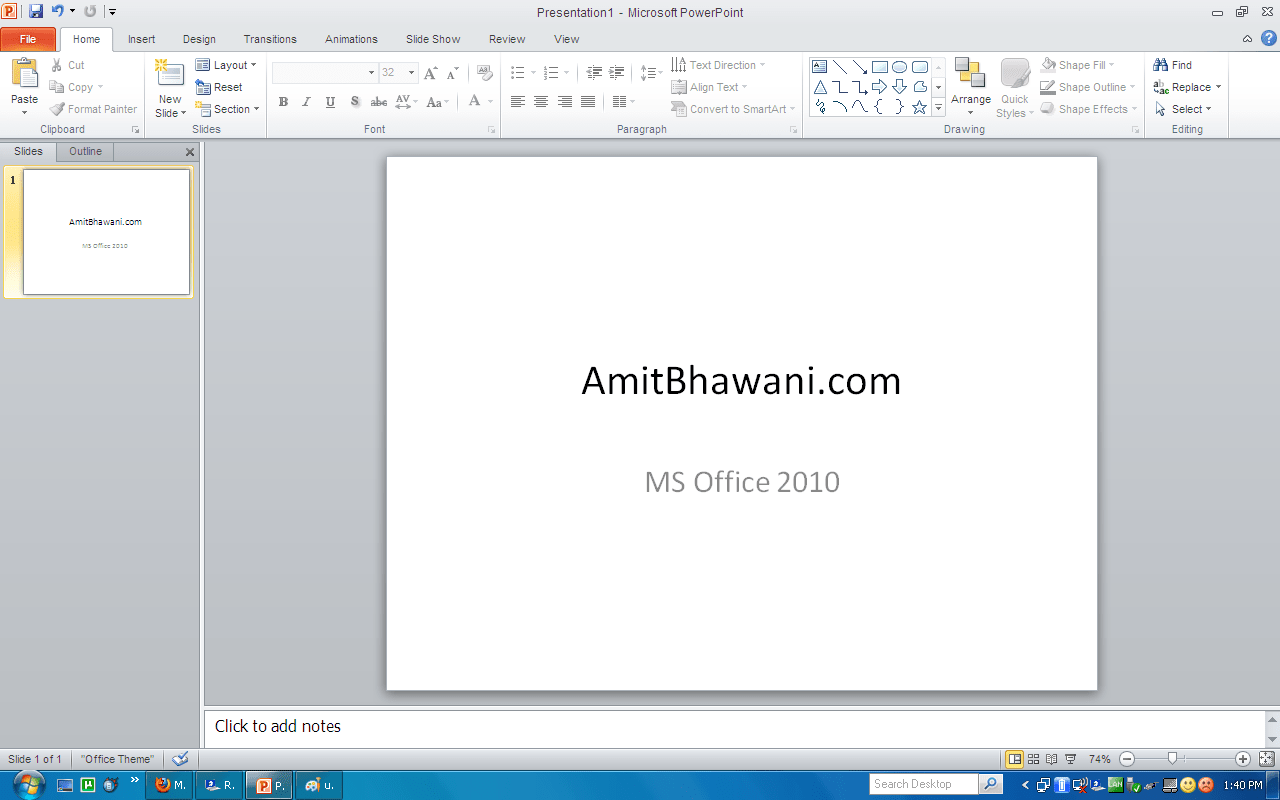
Here are few screenshots of MS Office Word, Excel, Powerpoint & Infopath Designer.
Microsoft Excel 2010 Microsoft Powerpoint 2010

Share this:

  • Click to share on X (Opens in new window) X
  • Click to share on Facebook (Opens in new window) Facebook

Related

About

My name is Amit Bhawani and here I like to share my internet/tech experience with my online readers. You can follow me on Twitter, Facebook & Instagram at @AmitBhawani I am also the Editor-in-Chief of PhoneRadar & Master Gadgets

About Amit Bhawani

My name is Amit Bhawani and here I like to share my internet/tech experience with my online readers. You can follow me on Twitter, Facebook & Instagram at @AmitBhawani

Comments

  1. SaLKiD99 says

    April 5, 2010 at 3:11 pm

    when i downloaded it , it didn’t open , when it worked , and extract it , i can’t find it

    our computer is vista (home premium)

    any idea to find it?

  2. Neil O'Sullivan says

    September 7, 2010 at 12:09 am

    Hi,

    In following Installation intructions, I discover that there is no “Change Product Key” button on the right side of the screen as described in Step 2 of Installation Instructions.

    Please clarify, thank you,
    Neil

Timeline

Check out Just EV Tweets by @amitbhawani

Recommended To Read

  • How to Find your WiFi Signal Strength & Dead spots in your Home – Best Apps
  • The Wuhan Corona Virus Effect in India – How to Stay Safe
  • This Blogger Lost 25Kgs with this Secret Strategy that Includes a Fitness Tracker
  • Making Money on YouTube, MCN, Useful Tools, Tips & Success Stories
  • The #JaguarPerformance Experience that was Mind Blowing