
Problem : I have downloaded few useful Windows Gadgets which are not being recognized by the computer when i try to install the same. I get an error when i try to open the Windows Gadget (.gadget) files asking me to select the program using which i want to run it. How can i Enable the Windows Gadgets Platform on the computer?
Solution : All the files which are downloaded should be able to run with the Windows Desktop Gadgets. These features would normally come activated and running on your computer with a few Gadgets being displayed by default. If this is not the current state, there are chances that you would have disabled it by mistake and in order to revert this state back you should perform the following.

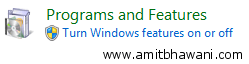
One simple option which can help you out is by tweaking some of the settings in Windows without the need of editing the regedit. Click on Start > Control Panel > Program and Features > Turn Windows Features on or off.
You will be displayed with a list of different Windows Features which are currently enabled and disabled. Here search for the ‘Windows Gadget Platform’ and click on the check box next to it to Enable the same. That’s it you will be able to find all the default Gadgets displayed again on your desktop which can be easily customized by right clicking on the desktop and selecting Gadgets.
