
Problem : I recently switched to the Safari 5 Browser which was launched with excellent features which comes with many useful extensions and a clean interface. The main problem now i have got is the missing live bookmarks and normal bookmarks which i had saved in the Firefox browser. Can someone help me out in exporting them from firefox and importing them here.
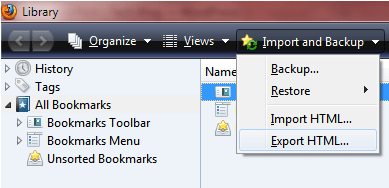
Solution : There is a very easy process to get this job done because firefox allows you to Export all your bookmarks easily while Safari allows you to easily import them. To get started first you need to run the firefox browser and click on ‘Bookmarks’ option in the top menu. Under this click on ‘Organize Bookmarks’ which can also be reached at Ctrl+Shift+B. Under the Library which is opened you will find a ‘Import & Backup Option’ under which you need to click on ‘Export HTML’. You will be next asked to select the location where all the bookmarks would be downloaded in the form of a .html file.
Now all the bookmarks which were stored in your Firefox are available in the form of a .html file which you need to import in your Safari browser. Unlike Firefox, safari does not display the Import or Export options of bookmarks under the Bookmarks Menu, hence you need to click on File > Import Bookmarks option. You will be asked to select a Bookmarks file which could be of any format like .plist, .html, .htm, .shtml, .xht & .xhtml. Once you have selected and imported, you will be shown with a new Bookmarks Management tab asking you to enter the name you want to give for these new imported bookmarks folder.

In order to show these Imported Bookmarks under the Bookmarks toolbar of safari, you need to move the complete folder from Bookmarks to Collections under the Bookmarks Bar.
