
Problem : I have a laptop with a few function keys which work only when i press the fn + combination keys and i wanted to know if its possible to change this and remove the current keyboard combinations. If there any free remapping keys and button softwares available to solve this problem.
Solution : You can try out the software which is available at autohotkey.com which is a free open source utility for Windows users. Here is a small tutorial on how you can use this application on your computer.
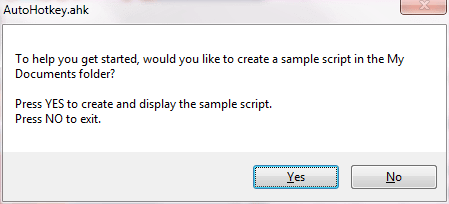
Once you download and install the application, the help file would be running which can be used to get some detailed tips on the usage of this application. Next the AutoHotkey.ahk would ask you to create a sample script to get started, which can be done by clicking on the YES button.
Next the sample script would be displayed which would have two sample hotkeys allowing you to run different applications based on different keyboard combinations.
Example :
#z::Run www.autohotkey.com

^!n::

IfWinExist Untitled - Notepad

	WinActivate

else

	Run Notepad

return
The above process would mean that whenever you run the AutoHotKey application, the sample script would be loaded and all the linked shortcuts would start working. Now lets start creating a new script which can allow us to create new shortcuts.
Right click on the application and select the ‘Edit this Script’ option which would open the default notepad based file which is stored in the .ahk format. Add a new line of code in the notepad file without the comments to create a new shortcut to open some website when you press a combination.
Example : Type the following
#space::Run www.amitbhawani.com
This would open the specified website whenever you press the Windows Key + Spacebar buttons at the same time. Save the file and close it. Double click on the file and launch it following which the shortcut would start running based on the commands you set.