
I have a Reliance Netconnect Postpaid connection for my daily internet usage and iam very much satisfied with the services they offer, but there is only 1 issue with this service which is the default website which loads whenever i login to the Interface and this hangs my browser many a times. Is there any solution for this problem? I tried blocking the reliancecommunications.co.in website using my browser settings but this gives other problems. Please help me out with a optional setting. Venkat – Delhi
Reliance Broadband+ offers you with a inbuilt software which comes with the USB Modem, allowing you with connecting to the internet easily and once the connection is successful, it would load its official website to make sure that the connection is perfect. Now if you are not happy with this there is a option for you where in you can change the default website to your own website or else favorite search engine like Google. Here is the procedure for the same.
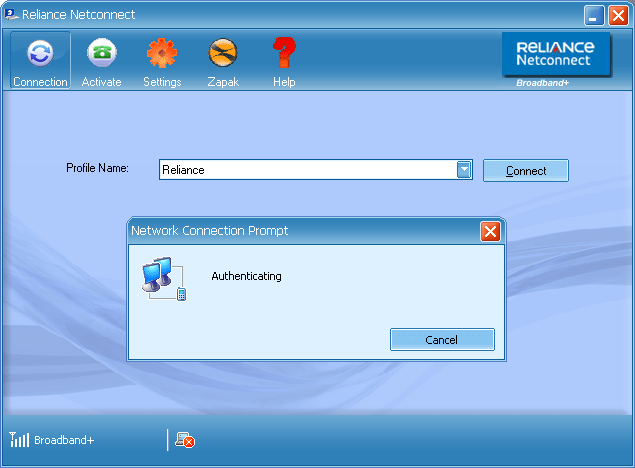
The moment the connection is established, the software will load their official broadband+ website to show you that the connection is successful and also details on how to pay reliance bills online. Since you are not interested in loading the default there is a option to change this and for this you need to edit one of the files installed by this USB Modem software. Here is the procedure for the same.
First access your Program Files folder and then follow the following steps to reach the final destination.
Program Files > Reliance Netconnect – Broadband+ > plugins > XFramePlugin
In the XFramePlugin Folder you will find a file called as config.xml which you need to open in your default text editing software like Notepad and then using the ‘Find/Search’ option search for reliancecommunications.co.in and then replace the default URL with any website URL you want to change it to. It will be between <homepage>http://www.amitbhawani.com</homepage> Tags. There is no other option in the software itself which can help you in changing this directly.

thanks. it worked for me, though the folder name and reliance site name were slightly different.
Remove the HomePage tag itself from the file. IT will not open any browser window itself. For me this is the best option. You can also set to about:blank so that it opens a blank page.
This was the best option.
Rajesh
Hi amit….
is der any trick to use broadband+ unlimited…….
Very neat Trick. I was trying something hi-tech like disassembling the main exe and all the stuff. From the procedure here and all the other sites, it seems like it is working fine. Yes it kind of worked for me. I set it to http://www.Google.com. But when I connect it it loads as http://www.Google.com.”my reliance phone number”.html and of course Google saying that this web page is not found. If i put about:blank it opens up in IE which I hate to use. I use Firefox. Anybody come across this problem. Anyway Thanks for the tip, I did not realize it was this simple. Excellent. Sorry to post again, entered the wrong mail ID before
Hi,
Nice trick, but how it works on Mac Books? Please can any one tell me.
theres no tag in the config file…..any other workaround out there?