

The beginning would be with the Extraction of files from the large downloaded file. Next you will find that there is a option to Upgrade because i had MS Office already installed of a older version and hence i could customize this to keep all the previous versions or else upgrade it. The installation process would start, though i felt that it took a long time to install because the progress bar was quite slow in moving and at a moment i did feel to cancel the installation.

You will find a list of programs installed on your computer, in the Start>All Programs section. The following screenshot can give you a idea on this.

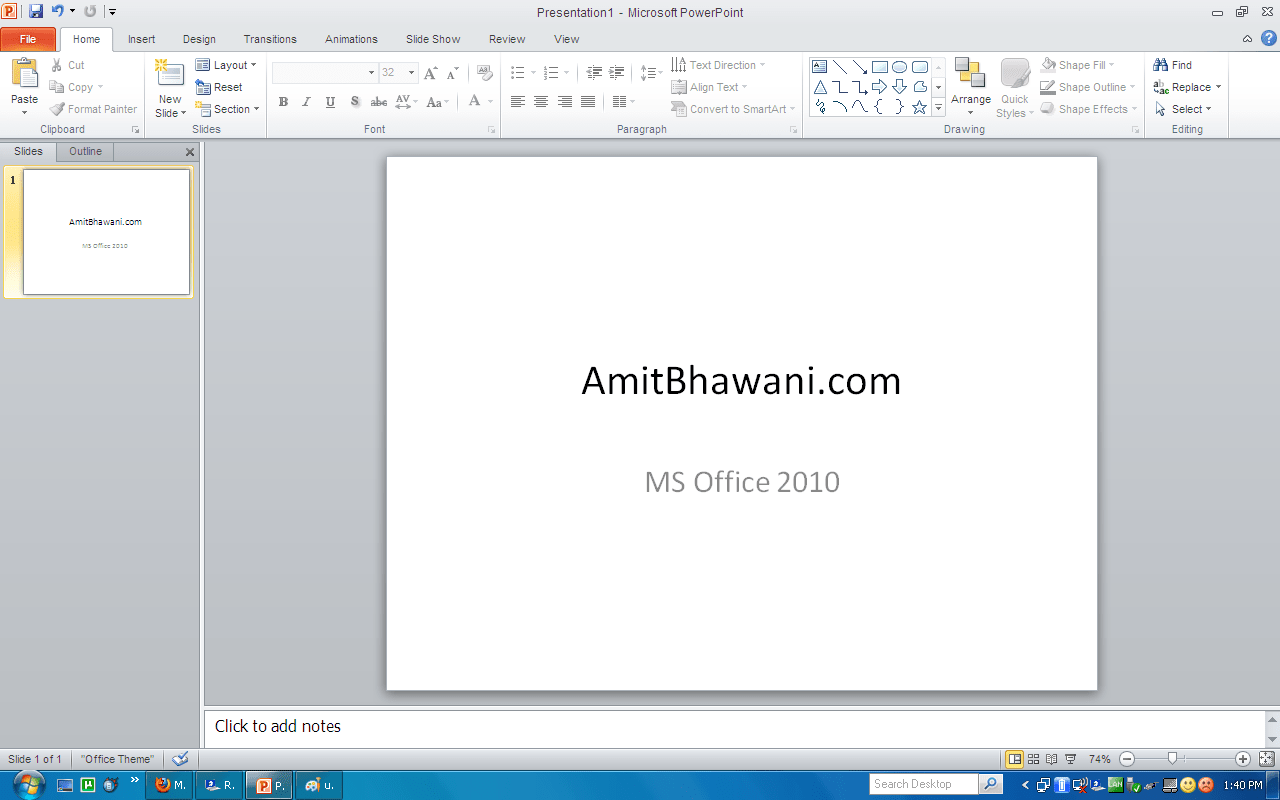
Here are few screenshots of MS Office Word, Excel, Powerpoint & Infopath Designer.


when i downloaded it , it didn’t open , when it worked , and extract it , i can’t find it
our computer is vista (home premium)
any idea to find it?
Hi,
In following Installation intructions, I discover that there is no “Change Product Key” button on the right side of the screen as described in Step 2 of Installation Instructions.
Please clarify, thank you,
Neil