
We had recently published a Presentation on Getting Started in Blogging which was built on Microsoft PowerPoint software. It had some nice graphics and beautiful layout and content and we finally planned to share the same presentation in the form of a Youtube Video so people can easily watch it when they are using gadgets like iPad or iPhone.
In this article we will show you how you can convert your existing MS PowerPoint based Presentation into a beautiful video which can be published on any video hosting site like Youtube,Vimeo etc.
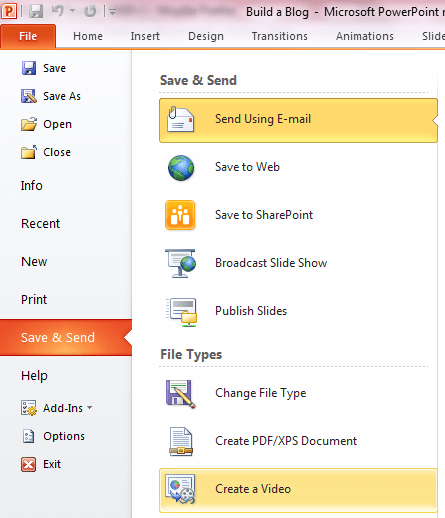
Click on the File option from the Top Menu and then click on ‘Save and Send’ option.

Next you will find different options where under the ‘File Types’ option, there is a option of ‘Create a Video’. Click on this option.
Next the software will ask you to select any of the available options for customizations. Along with the video you can :
- Incorporate all recorded timings, narrations and laser pointer gestures.
- Include all slides not hidden in the slideshow.
- Preserves animations, transitions and media.
The video creation depends on the quality selected and the type of options you customize. You can also set slides to be automatically changed based on the time you set in seconds. The displays is based from Large HD at 960×720, Medium 640×480 & Small 320×240.

Click on the ‘Create Video’ button which will open a new box asking you the location where you would like to save the video file. Once the location is set a .wmv format file would be creation, the progress of which would be displayed at the footer section.

If its taking a long time in creating the video you can try out other third party tools like Moyea PPT to Video Converter.
Attached is a video which was generated while creating the above tutorial and uploaded to Youtube.com

Amit, I think it would have been even better if there was an option for navigation between slides, instead of auto play and also an index of all the slide titles.
I think thats only possible when we set that through Youtube options, no option in Powerpoint as of now on this.
Avinash: You can try if “annotation links” work for you. You can link to a particular time of the video.