First of all you need to keep one thing in your mind, which is that you cannot increase the connection speed from the ISP but tweak your computer to make sure that you can use 100% of what the connectivity you get and optimize the same. If you are on a 256kbps connection, the download speed of any file you would get would range at around 25-30kbps, calculated at the rate which the Internet Service Provider offers you divided by 8, hence for the 256kbps connection, it would be 256/8 = 32 but ultimately some of the programs which run in the background would take up the connectivity speed along with the operating system and other software updates which continuously monitor your PC for updates and keep connecting to the Internet and upload or download this information. Hence we need to try to block all these problems and make sure that the speed we get is optimized and used to the maximum by implement the following steps.
Increasing Browser Memory Cache : Whenever you load a new website on your browser, some of its objects get saved on the browser cache memory and this comes to use when you reload or the same visit. This is the very same reason the websites which you have already visited would load super quick the second time you access them. There are few set of guidelines setup based on the computer’s installed memory for the browser cache memory size and here are some of the details.
?Installed RAM – Automatic Cache Allocation
32MB – 2MB
64MB – 4MB
128MB – 8MB
256MB – 14MB
512MB – 22MB
1024MB – 32MB
2048MB – 44MB
4096MB – 58MB
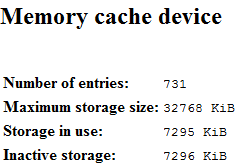
Hence the computer’s browser would automatically allocate the memory for the cache purpose based on the Installed RAM and if you prefer you can increase the same manually which is what we would recommend in this section. The more size you allocate for this job, the more amount of data is saved on your browser and this would reduce the loading time of your frequently visited websites. If you want to check out the cache memory details on your firefox browser, you need to hit ‘about:cache’ in the address bar and the results would be shown under different sections like Memory cache device, Disk cache device & Offline cache device. For a detailed report only on the memory cache and whats currently stored you need to enter ‘about:cache?device=memory’.
Memory Cache Device
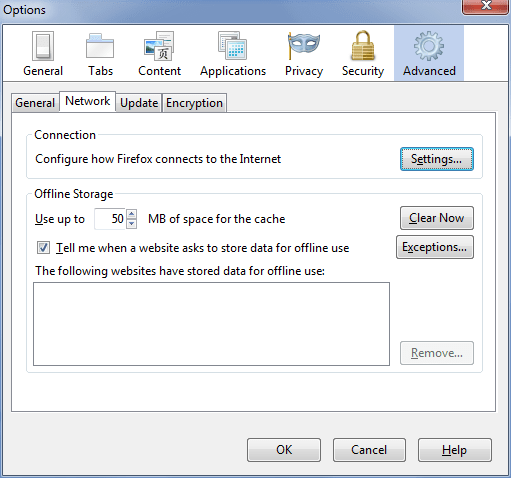
How to Increase the Cache Memory Size : You need to visit the Tools > Options > Advanced > Network and under the Offline Storage increase the size manually.
Cache Network Options
You can just set this option to either 100Mb or else directly 500Mb and forget it, this would boost the Internet Browsing to a decent level and help you enjoy the speeds you get.
Install Page Speed : This is a excellent tool from Google available as a Firefox Add-on. Basically this addon would perform several tests and also enhance the web page performance, following which you would get a better browsing experience.
By using Page Speed, you can:
* Make your site faster.
* Keep Internet users engaged with your site.
* Reduce your bandwidth and hosting costs.
* Improve the web!
You can install Page Speed from here.
Homepage StartupLoad Favorite Websites : You can easily store your favorite websites and load them quickly using tools like HomePages StartUp. Using this you need to just define the websites you regularly visit, and create a account and save these settings. Now if you are on your friends laptop, or on a different web browser you can save time by just logging into this website and load up all the websites whose thumbnail is displayed on the homepage. Now you have already seen the above option of Memory Cache, hence the browser would automatically store all this sites basic data and would not reload everything whenever you visit these sites, saving up the internet bandwidth and also your time.
Block Images Loading : Whenever you access any of the social bookmarking websites or entertainment websites, they would take up a decent amount of time in loading and the main factor is shared by 2 things ie Images & Advertisements. Now stopping images from loading is a very easy task with your browser because there are some easy options which you need to Enable & Disable to get this task done. Here are some of the steps which you need to implement on the most used browsers all over the world.
Block Images in Mozilla Firefox : Before you start accessing any website, you need to run the browser and go to Tools > Options, then under this you need to go Content Tab and Uncheck the option which says – ‘Load Images Automatically’ which will disable the Images loading while the webpages load up on the firefox browser.
Block Images Firefox
Block Images in Internet Explorer : While using Internet Explorer Browser, you will feel a bit hard to find out the right option, but if you go on the following path, it can be easily disabled. Go to Tools > Internet Options > Advanced Tab > Multimedia > Uncheck – ‘Show Pictures’ option. This will instantly turn off the option of loading Pictures or Showing them on the websites.
Internet Options Show Pictures
The same options are available for Opera, Google Chrome or most web browsers and you need to right click on the Images Location and select option of Show Image, to display the selected Image and make sure that all the Images are not loaded for that web page.
Opt for Lite Versions : Most websites which are considered as the Top1000 most visited sites on the web, are having options of Lite Mode or Low Bandwidth version which would have most of the features but less of graphical representation. You can check out these options available under the settings or the footer section of most of the websites and this feature is mainly found in Social Networking Websites & News Portals which have heavy graphical content and which can also be avoided. Here are some of the examples for the same.
Orkut offers you with Low Bandwidth option which can be enabled by visiting your Orkut Profile Page > Settings > General Tab, Under this in the ‘Low Bandwidth’ section select ‘Show low bandwidth version of orkut’.
Facebook offers the same stuff under the name of FaceBook Lite, which can be accessed at http://lite.facebook.com/ where in the 3 column original design is converted to 2 columns and does not have most features but has the main purpose solved. This is the optimized version of the original website which loads super quick and which is quite useful for mobile phone users too because these kind of lite pages dont hangup too.
There are certainly many many other ways to increase the browsing speed while you are on a very slow Internet Connection but at the moment i was able to write down the above list. If you have any other, you can add them using the comments form below which can be useful to other readers.
My name is Amit Bhawani and here I like to share my internet/tech experience with my online readers. You can follow me on Twitter, Facebook & Instagram at @AmitBhawani
I am also the Editor-in-Chief of PhoneRadar & Master Gadgets
About Amit Bhawani
My name is Amit Bhawani and here I like to share my internet/tech experience with my online readers. You can follow me on Twitter, Facebook & Instagram at @AmitBhawani
Comments
price in indiasays
I am using the slow net connection. I hope this will work well to increase some net speed.
Bing Desisays
Nice tips. Let me apply to my pc.
ravisays
hi i m ravi. i m in bihar(patna) and i m using airtel gprs mo but it is very slow how can i increase its browising speed and downloading speed ?? plzzzzz reply soon….
uniurssays
ys u r correct
prudhvisays
im using airtel net very slow,is it is possible to speed up it r any other pls suggest me,
Raghuvindersays
I am using BSNL mobile It’s very low speed 115 kbps. But i want to take more speed. so plese help me. what can i do.. except new plain.
i want to increase my browsing speed?, so tell me suggestion. i am using nokia 3500c model mobile & using airtel gprs service, through this i am connecting to pc & using the internet.
jaisonsays
do anyone know how to increase dialup speed am using a shg-e250 samsung phone and the network is aircel they say it has 240kb\s and i only get 500-1000 bytes\s(downloading speed ) and browsing is too slow “WILL YOU GUYZ HELP ME”
maddysays
use videocon sim and get 40-50 kbps downloading speed i am using it and thanks for this tricks.

 We have covered several articles previously on how to increase your internet browsing speed while you are on a slow internet connection or while you are using your mobile phone for internet access. You can check out some of these here – Increase Internet Browsing Speed, Optimize Internet Connection, Increase Internet Connection Speed and you can check out the speed comparison using Broadband Speed Test Tools, like the speed meter we have on our website.




I am using the slow net connection. I hope this will work well to increase some net speed.
Nice tips. Let me apply to my pc.
hi i m ravi. i m in bihar(patna) and i m using airtel gprs mo but it is very slow how can i increase its browising speed and downloading speed ?? plzzzzz reply soon….
ys u r correct
im using airtel net very slow,is it is possible to speed up it r any other pls suggest me,
I am using BSNL mobile It’s very low speed 115 kbps. But i want to take more speed. so plese help me. what can i do.. except new plain.
i want to increase my browsing speed?, so tell me suggestion. i am using nokia 3500c model mobile & using airtel gprs service, through this i am connecting to pc & using the internet.
do anyone know how to increase dialup speed am using a shg-e250 samsung phone and the network is aircel they say it has 240kb\s and i only get 500-1000 bytes\s(downloading speed ) and browsing is too slow “WILL YOU GUYZ HELP ME”
use videocon sim and get 40-50 kbps downloading speed i am using it and thanks for this tricks.