
 The new Microsoft Office 2010 Word package comes with a Superb Picture Tools section which would eradicate all the 3rd party Image Editing softwares. Once you have installed a legal copy of this application in order to check out all these Image Editing tools you need to insert a Image in the Word Document on you will find a list of options, when you click on the Image and select the format options.
 The first option of all these is the Remove Background option which will remove all the unwanted backgrounds automatically from the picture.
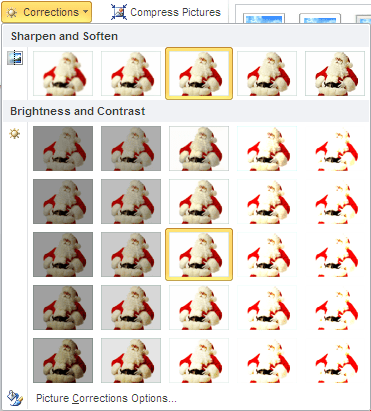
The next option is Photo Corrections which would improve the Brightness, Contrast & Sharpness of the picture.
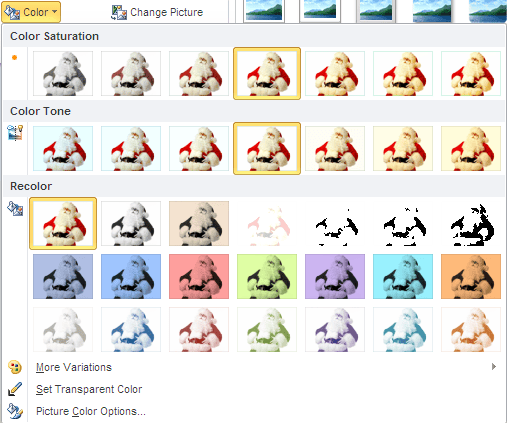
The Color would allow you to automatically change the colours of photo in order to make sure that it matches with the background of your Document file. This also increases the quality of the picture and useful if you are having a themed document.
Instead of using a software which can turn your pictures into cartoons or funky avatars, you can use the Artistic Effects option which would make the pictures look like a sketch or a painting.

Other useful options include – Compress Picture which would resize the Image to any specified size or even create a thumbnail size useful for sending the Image via email. You can also select the ‘Change Picture’ option to change the whole picture and use another one instead keeping all the formatting and settings already applied. Not happy with all the settings you have setup? you can even click on the Reset option and undo all the effects you had added to your Image.
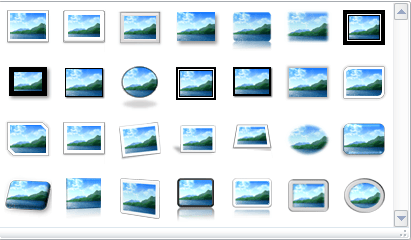
You can easily Add Frames or Borders to your Images and for this there is no need to click on any option but there is a list of different thumbnails showing frames, which once clicked would implement them. Don’t forget that you can also use this software as a Blogging Tool. Photo via Christmas Wallpapers

Thanks for sharing information about MS office 2010 easy photo editing tools.
MS Word 2010 can do that? That is something I never realized!