
I have a Facebook account and its linked to my email address where in i get notifications every few minutes whenever someone tags photos, sends application notifications, sends friend requests etc but i want to get these notifications and chat feature through my mobile phone. Is it possible to add my mobile phone number to the Facebook account?
Facebook does allow you to easily add your Cell Phone number to the account following which you can easily make text messages and stay updated with all the status updates or photos, videos and links your friends share on your news feed.
To get started you will have to click on your Account Drop Down option and then click on the Account Settings option.
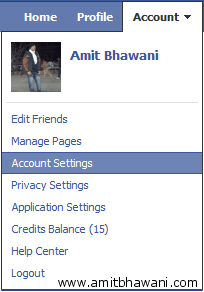
Next under the Account Settings Page you will find a option called as ‘Mobile’. Click on this option which will redirect to this page – http://www.facebook.com/mobile/?settings

You will be asked to ‘Activate a Phone’, following which Facebook Mobile will send you messages in text format to your cell phone whenever someone sends a friend request, messages, wall posts and status updates for free of cost. To get started click on the ‘Register for Facebook link.

A small window will show up asking you to selected the country and mobile service provider carrier which is the mobile network or cellular company. Select the correct options and click on the Next button.

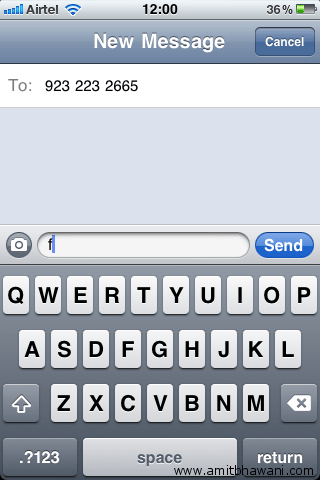
You will be asked to next send a text message to a specific number like 9232232665 with the message being just ‘f’ letter.

From your mobile phone send the above required letter to the number provided by Facebook and proceed.
Within a few minutes you will get a confirmation code on your mobile phone from the Facebook service. This confirmation code has to be entered on the Facebook confirmation on the website and then click on the confirm button. Next you will be asked with a few options to customize the mobile notifications and the time these text messages should be to sent to your phone. Now you can enjoy all the features of Facebook from your mobile phone itself.

Nicely explained! 🙂
I was looking to connect Facebook through my mobile, So is it the same procedure to connect a mobile phone through Facebook?
I will prefer not to share my personal info with fb.. very dangerous..
what are the benefits of adding number in facebook?
will i get live updates of my profile?
will my phone be visible to everyone