
If you have purchased a Windows 7 Phone and by mistake have made some wrong settings selections while setting up the device, then you could fix all of those by resetting the device. The process is very simple because the phone comes with a complete backup of all the OS data stored in the inbuilt memory which normally takes around 2GB of the memory.
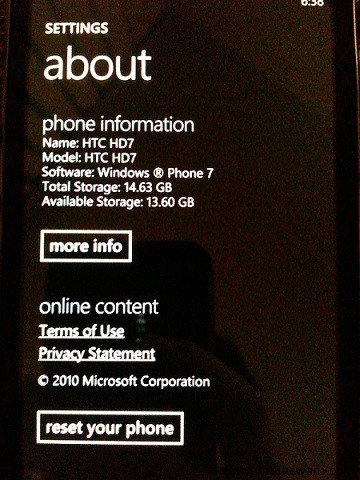 This option is also useful if you are selling your phone or transferring the same to someone else. When you do a factory reset or also called as a hard reset the device automatically returns to the state in which it was in before the first time it was turned ON. All your customized settings, downloaded applications, personal media files, contacts would be erased with this step. If you would like to uninstall applications then this is not the procedure for that task.
Performing a factory reset via settings :
The most convenient way to do a factory reset is via the phone settings.
- On the Start screen, tap .
- Tap Settings > about phone.
- Tap reset your phone, and then tap yes.
Performing a factory reset using phone buttons
If you cannot turn on your phone or access the phone settings, you can still perform a factory reset by using the buttons on the phone.
- With the phone turned off, press and hold the VOLUME UP and DOWN buttons, and then briefly press the POWER button.
- Wait for the screen to show the instructions on how to do the factory reset, and then release the VOLUME UP and DOWN buttons.
- Follow the instructions onscreen to factory reset your phone.
We have made a video tutorial for this feature with our HTC HD7 Windows 7 Phone which took not more than 2 minutes for complete reset and the phone was back to the original state and we were again able to Access Microsoft Marketplace and download apps.
Here is a video tutorial :

THANK YOU!